
Silent Sign-On for EntraID
Native Cloud -vs Hybrid Cloud
This bulletin explains the Entra ID environment that supports ESPM’s Silent Sign-On feature.
- Silent Sign-On is supported when Entra ID users are set up in a cloud-only Microsoft Entra ID environment.
- If a customer’s Entra ID users are set up in a Hybrid Active Directory environment (such as Entra Connect or Cloud Sync), Silent Sign-On will not be available. In this environment, users will be required to sign in manually.
1. Product Support for Sales & Marketing: Qualifying the Environment
In order to ensure a smooth customer experience and to avoid setting incorrect expectations during the ESPM product introduction, it is critical to determine the customer’s identity architecture early. The success of Silent Sign-On hinges entirely on whether the customer’s environments is “Cloud-Native” or “Hybrid.”
Cloud vs. Hybrid Identity
Cloud-Native (Supported): The term cloud-native suggests that the customer has no physical, on-premises Active Directory servers. All users, groups, and device management live exclusively in Microsoft Entra ID (formerly Azure AD) in the cloud.
Hybrid (Unsupported for Silent SSO): The term hybrid suggests that the customer maintains a local, on-premises Active Directory server. They use tools like Microsoft Entra Connect or Entra Cloud Sync to copy their local users to the cloud. Even though they have a cloud presence, their users and devices are fundamentally anchored to the local physical server.
Key Discovery Action Item
Ask this qualifying question on early technical calls:
“Are your organization’s Windows endpoints strictly joined to the cloud via Entra ID, or do you utilize a local on-premises Active Directory server synced to the cloud via Entra Connect?”
- If Strictly Cloud: Suggest the Silent Sign-On with high confidence.
- If On-Prem/Hybrid/Synced: Clarify that they will need to use User Initiated Sign-on with sign-on codes.
2. Architectural Diagrams: Cloud vs. Hybrid ESPM Access
The following diagrams contrast a successful ESPM Cloud-Native deployment with an unsupported ESPM Hybrid deployment.
3. Technical Deep Dive: For Technical POCs and Engineers
For IT administrators and technical stakeholders, the limitation stems from how Windows operating systems handle Security Identifiers (SIDs) and how ESPM validates identity tokens.
Understanding SIDs and their Origins
A Security Identifier (SID) is a unique, immutable string used by Windows to identify user, group, and computer accounts. The prefix of a SID reveals the authority that generated it.
| SID Prefix | Authority / Origin | ESPM Silent SSO Status |
|---|---|---|
| S-1-12-1 | Azure AD / Microsoft Entra ID. This identity was born in the cloud and is natively managed by Microsoft’s modern identity provider. | Supported |
| S-1-5-21 | NT Authority / Local Domain. This identity was generated by an On-Premises Active Directory domain controller (or a local machine SAM database). | Unsupported |
Why ESPM Rejects Hybrid SIDs
ESPM’s architectural design is coded to exclusively recognize and validate cloud-based Entra ID SIDs (S-1-12-1).
When an endpoint attempts a silent sign-on, ESPM inspects the user’s local security context. If the user was originally created on a local server, their endpoint will present a SID beginning with S-1-5-21. Even if this user has been synchronized to the cloud, the local endpoint still operates using the localized SID. ESPM rejects this as a valid cloud identity, skipping silent sign-on and falling back to prompting the user.
Microsoft offers multiple tools to synchronize local directories to the cloud, notably Entra Connect and the newer lightweight Entra Cloud Sync agent. Neither of these tools resolves the ESPM limitation. Both architectures rely on the user originating from an On-Premises Active Directory, meaning the user will always possess an S-1-5-21 SID on their local machine. Thus, hybrid users, regardless of sync method, are incompatible with ESPM Silent Sign-On.
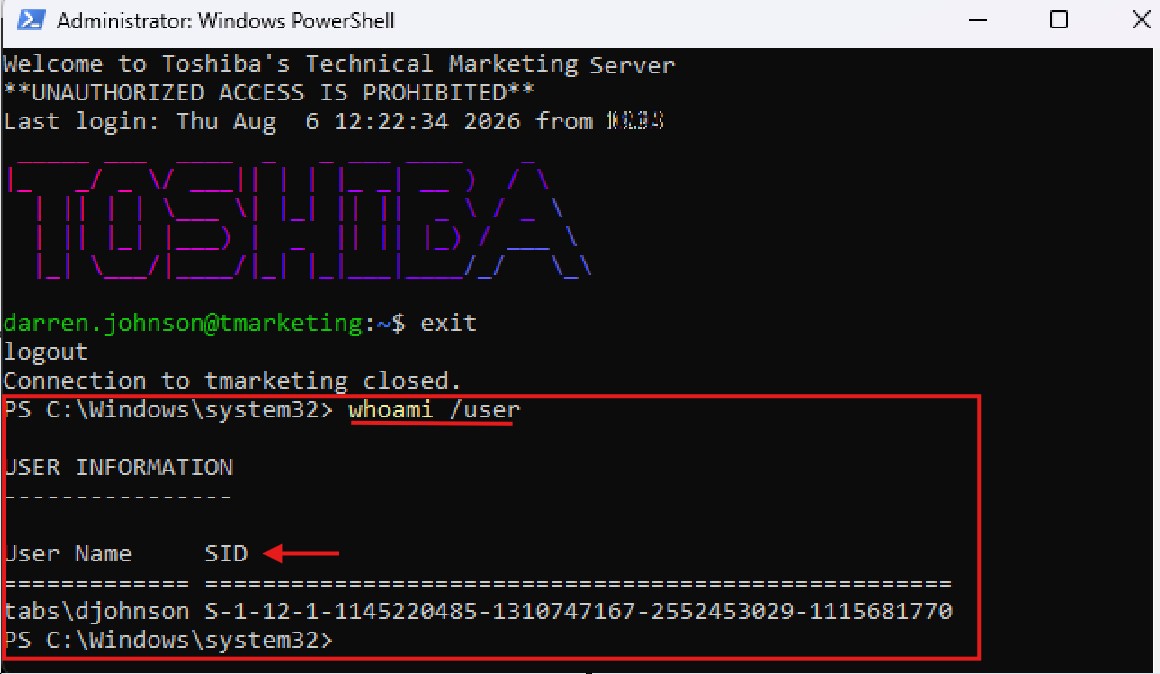
Verifying the Endpoint SID (Windows Only)
Administrators and support teams can easily verify the active SID on any Windows endpoint to confirm environment compatibility. Note: This applies strictly to Windows; macOS users default to user-initiated sign-on regardless of architecture.
- Open Command Prompt or Windows PowerShell.
- Type the command whoami /user and press Enter.
- Review the resulting table to identify the user’s SID prefix.
For additional content clarification, please refer to the official instruction and guidance found in the documents section of this site.

ESPM login: https://esp.toshiba-solutions.com/login
Find out more about our complete product line of Elevate Sky services