
Disabling LPR/LPD Services
Resolving ESPM printing issues
In Windows environments, print jobs sent to ESPM printers may sometimes fail to leave the Windows print queue (displaying a “Printer error”) and fail to arrive in the ESPM client. This typically occurs when conflicting print services are enabled
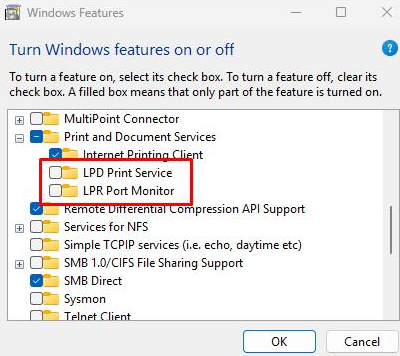
Context: In order to fix this issue, you need to disable the LPD Print Service and LPR Port Monitor within your Windows Features settings
The following steps provide an abbreviated step-by-step how to:
Step 1: Open the Windows Start menu, type Turn Windows features on or off, and select the corresponding Control Panel result
Step 2: In the Windows Features window, scroll down the list and locate the “Print and Document Services” folder.
Step 3: Click the + icon next to the folder to expand the Print and Document Services section.
Step 4: Locate the following two features within the expanded list:
- LPD Print Service
- LPR Port Monitor
Step 5: Ensure the checkboxes next to both of these features are cleared (un-checked).
Step 6: Click OK to apply the changes and close the window.
Done!
Note: Depending on your system configuration, Windows may prompt you to restart your computer for these feature changes to fully take effect.
For additional content clarification, please refer to the official instruction and guidance found in the documents section of this site.

ESPM login: https://esp.toshiba-solutions.com/login
Find out more about our complete product line of Elevate Sky services