COPYING AN ORIGINAL IN REVERSE PAGE ORDER (REVERSE ORDER)
Overview
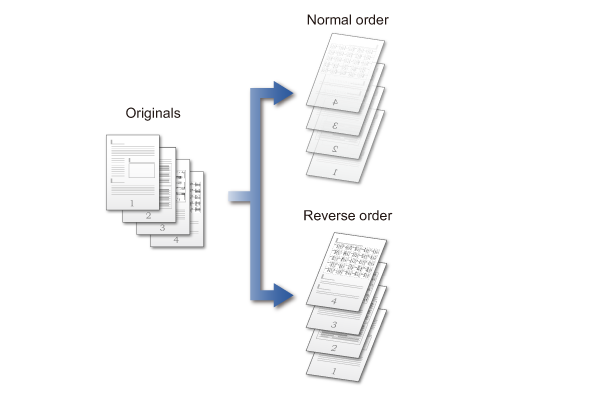
In normal copy operations, printed sheets are output in top-to-bottom order with the printed side facing down, producing a set of copies stacked in the same order as the original. The Reverse Order function outputs printed sheets in top-to-bottom order with the printed side facing up, resulting in a set of copies stacked in the opposite order to the original.
Operation

Tap the [Others] key, and tap the [Reverse Order] key
After the settings are completed, tap the [Back] key.
To cancel the reverse order setting:
Tap the [Reverse Order] key to clear the checkmark.
Place an original, and tap the [Preview]key
Place the original in the automatic document feeder or on the document glass.
Check the preview image in the preview screen
To cancel all settings:
Tap the [CA] key.
Tap the [Start] key to start copying

To produce two or more sets of copies:
Tap the copies display key to specify the number of copies.